Just My Socks
2026: The Ultimate Setup & Usage Guide
One guide covering the essential steps, clearly and simply.
New to Just My Socks? You don't need to master networking jargon first.The process is straightforward: choose a plan → get your subscription from the client area → install a compatible app → import servers and test your connection. One key detail:Some server protocols changed in 2026, so client recommendations in older tutorials may no longer work.
What Exactly Is Just My Socks?
Just My Socks (JMS) is a subscription-based proxy service offering several server routes. It is often discussed alongside the BandwagonHost ecosystem. After purchasing a plan, you can view your server configurations and subscription links in the official client area and use them with apps that support the required protocols.
Plans provide multiple server options. Performance depends on your location, ISP, and time of day—there is no single “fastest server” for everyone.
The terms describe checks and remediation for blacklisted IP addresses. This does not mean “100% block-proof” or “instant switching with zero downtime.”
Use compatible clients on computers and phones to import your subscription. The number of simultaneous devices depends on your plan limits.
Which Plan Should You Choose? Compare These Three Options
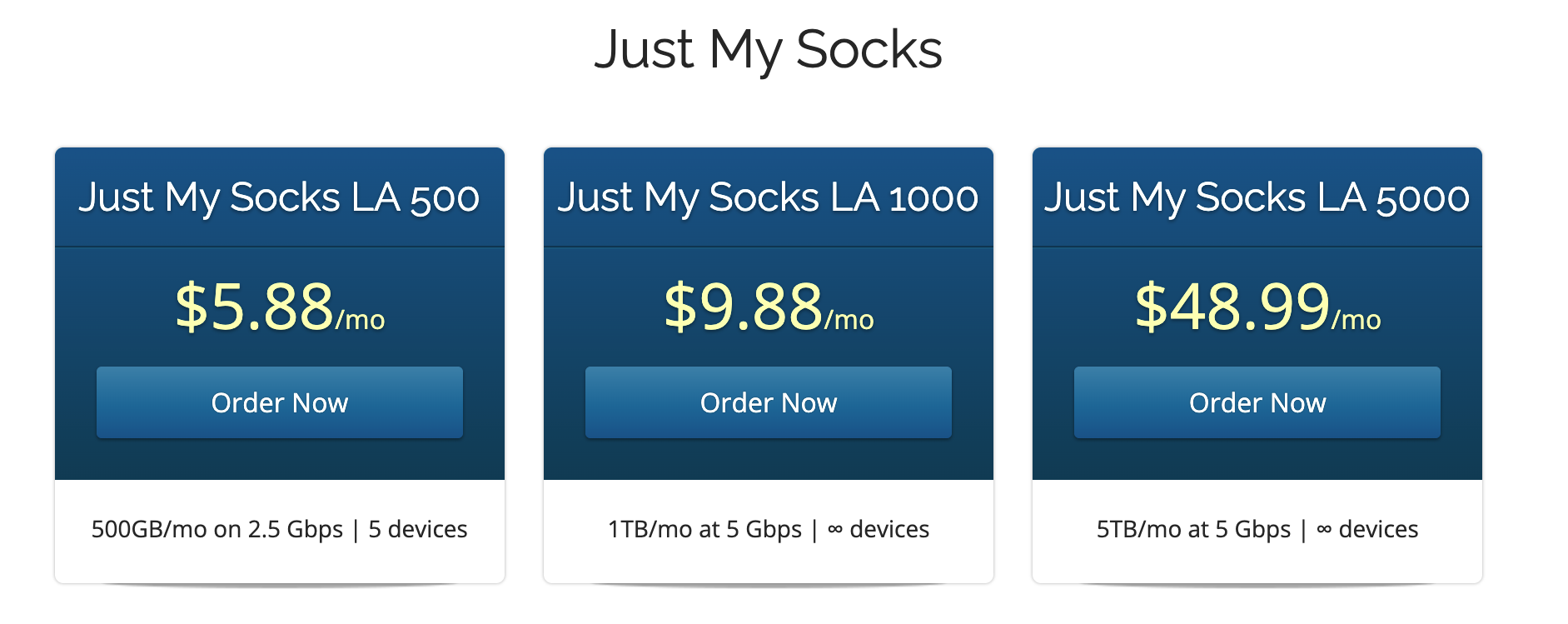
Prioritize monthly data allowance, device limits, and routing regionsrather than advertised bandwidth alone. These are the USD monthly list prices shown in the official cart on October 19, 2026; availability and checkout totals may change.
LA 500
LA 1000
HK CM 500
Pricing source:Just My Socks Official Cart. Advertised port speeds are upper limits, not guaranteed download speeds. Other plans, including Tokyo and Premium Hong Kong, have substantially different pricing.
Sign Up and Purchase: 4 Simple Steps
Open the Official Order Page
Visit the Just My Socks official shopping cart, select a plan such as LA 500 or LA 1000, and click Order Now. Review the data allowance, device limit, region, and current price before proceeding.
Select a Billing Cycle and Apply a Promo Code
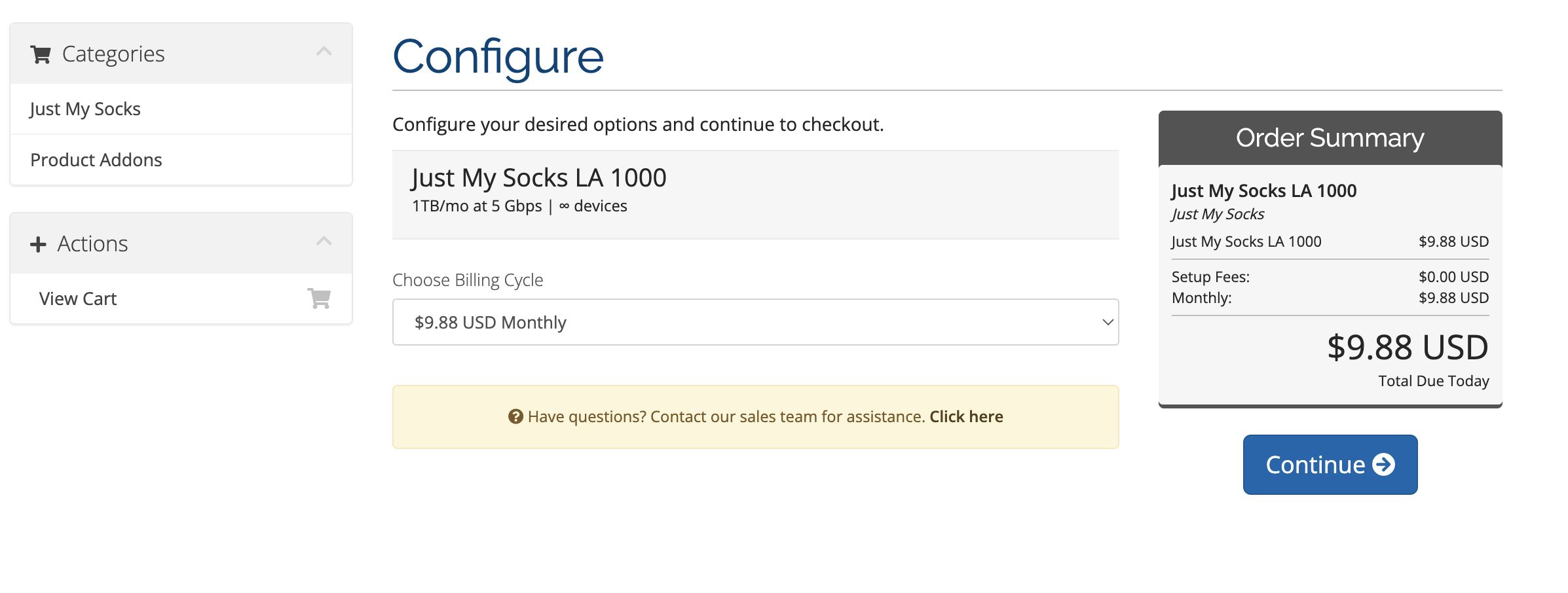
Choose monthly, quarterly, or longer billing if available. For your first purchase, consider the monthly cost, refund policy, and actual performance. Verify any long-term discounts at checkout.
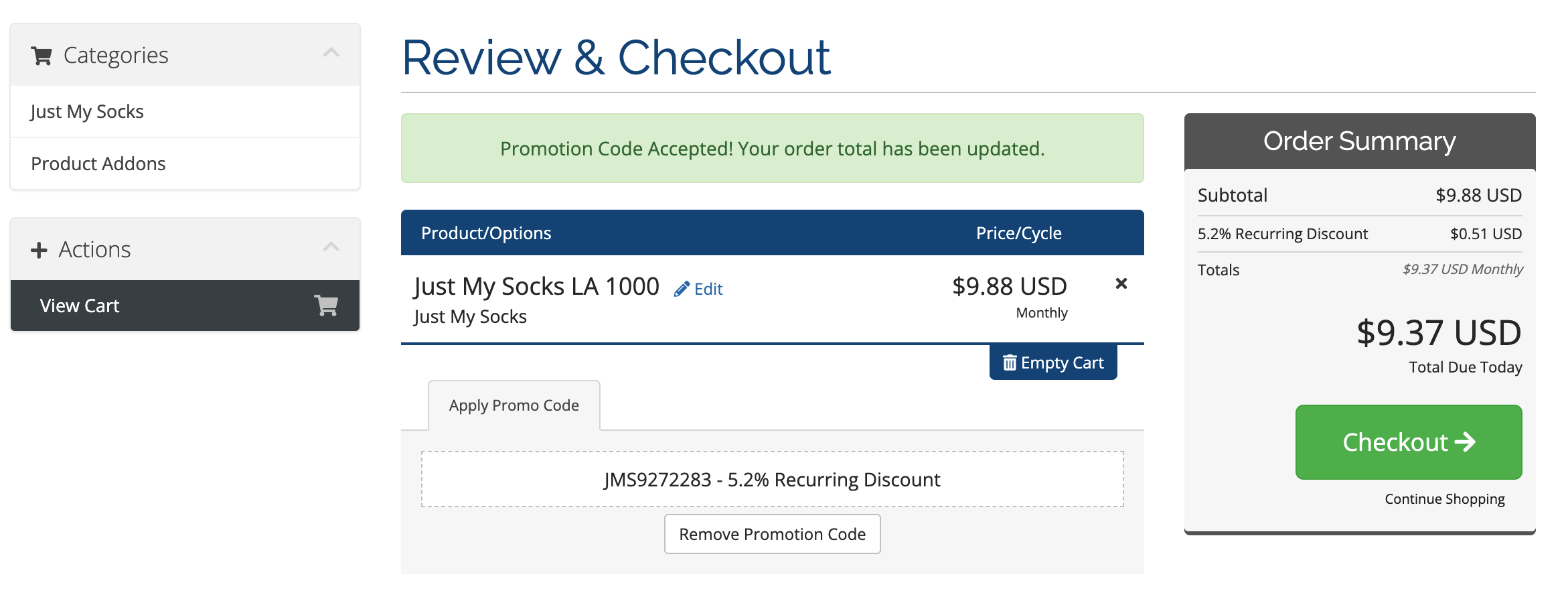
This code is advertised as offering approximately 5.2% off. Click Validate Code(or the equivalent button). Only consider the discount confirmed if your order total actually decreases.
Enter Accurate Details and Complete Payment
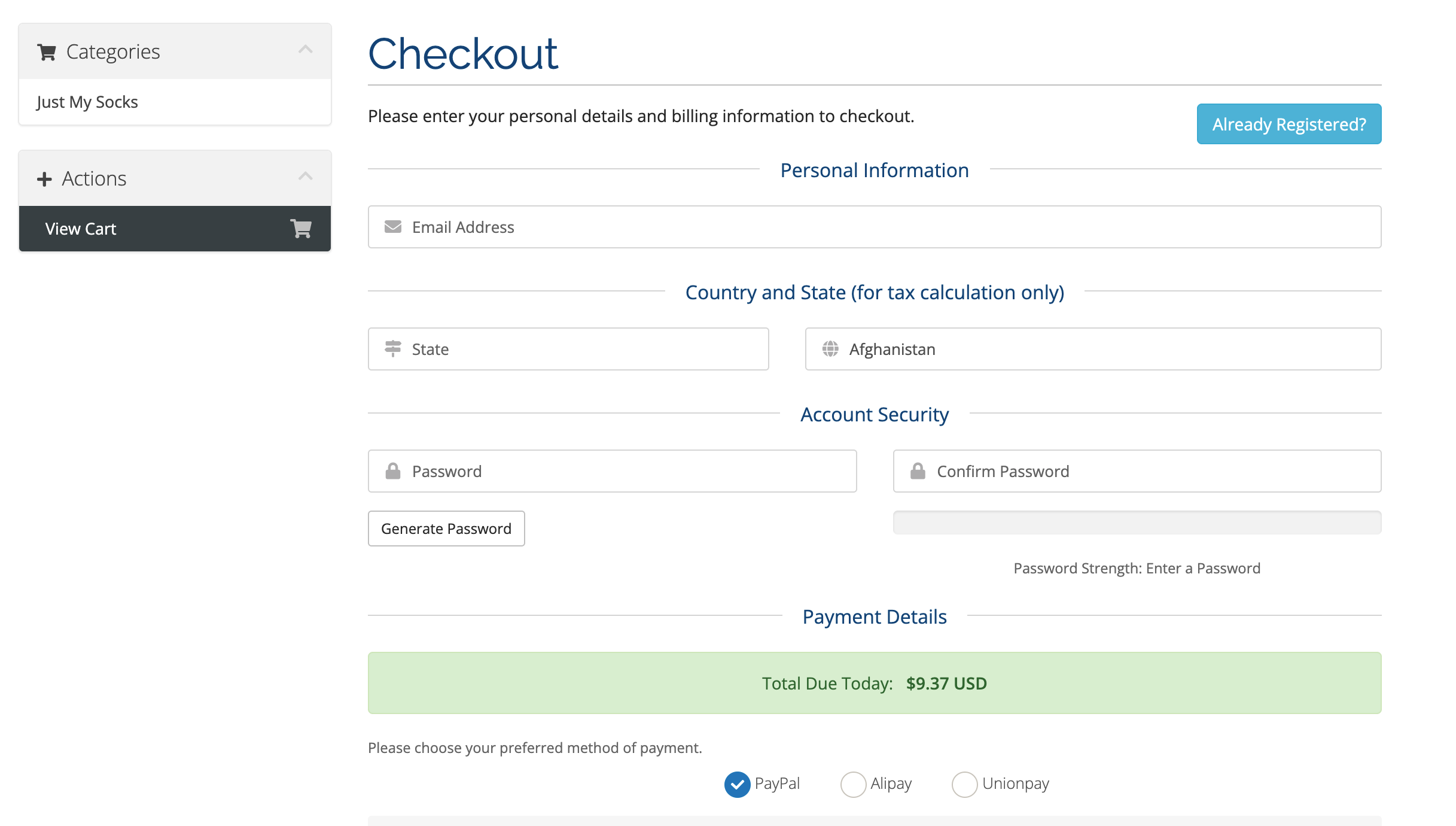
Provide a working email address, password, and accurate account information. Choose from the payment methods displayed at checkout. Third-party guides mention Alipay, PayPal, and UnionPay, but available methods may vary by region, order, and provider changes.
Before paying, double-check:currency, final total, billing cycle, automatic renewal rules, and terms of service. Avoid entering false account information for convenience.
Confirm Your Service Is Active
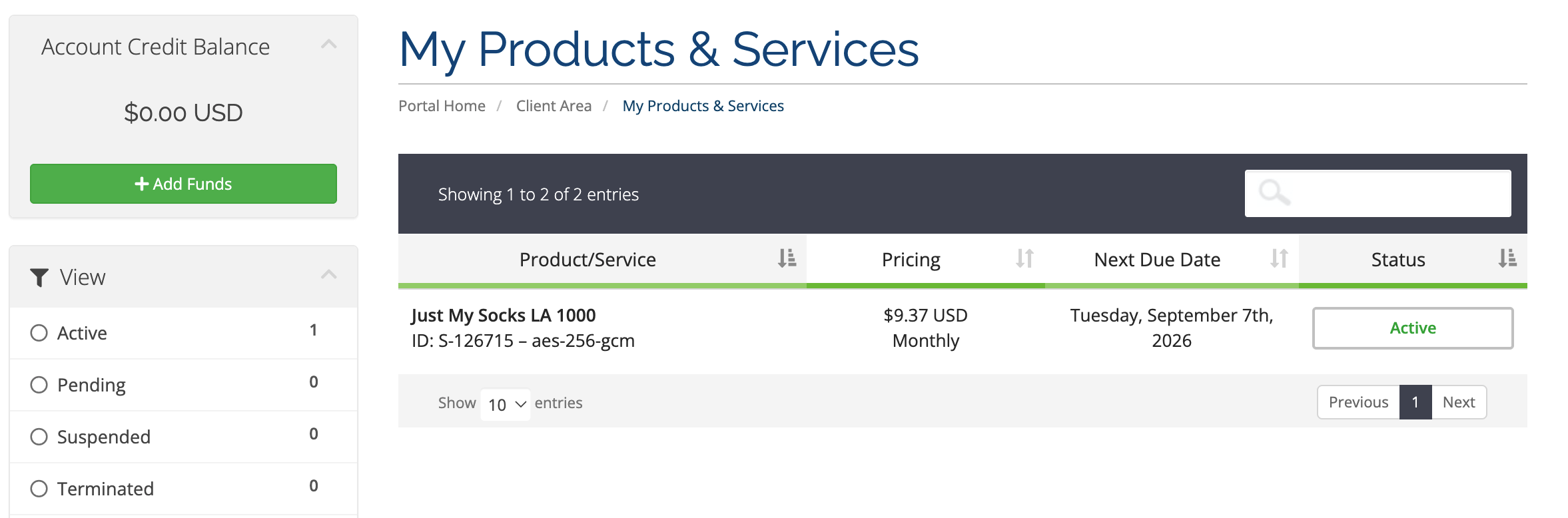
After payment, open the client area and go to Services → My Services. Select your service and check its status and usage information.
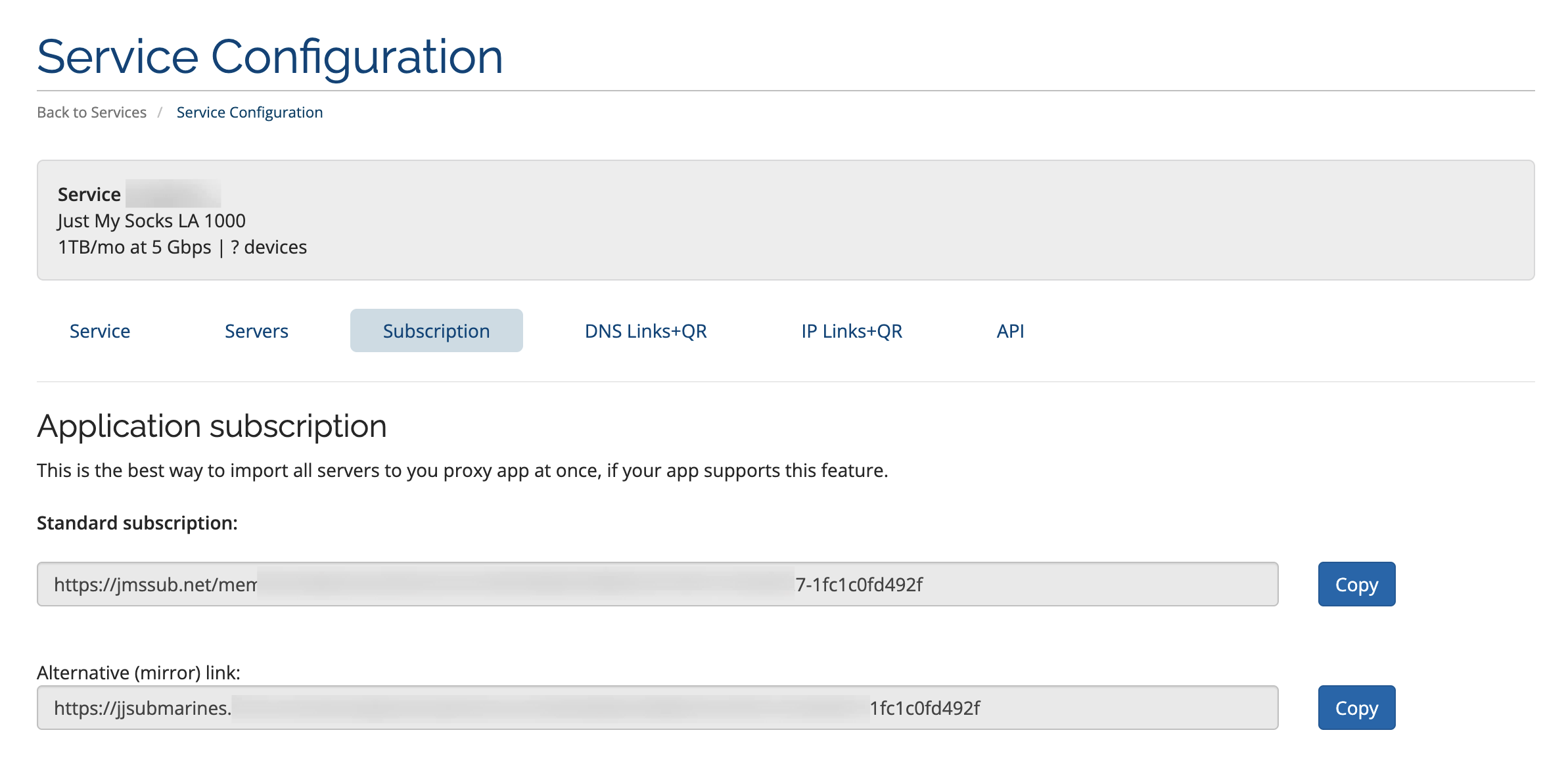
Next, open the Subscription section to get your personal configuration URL.
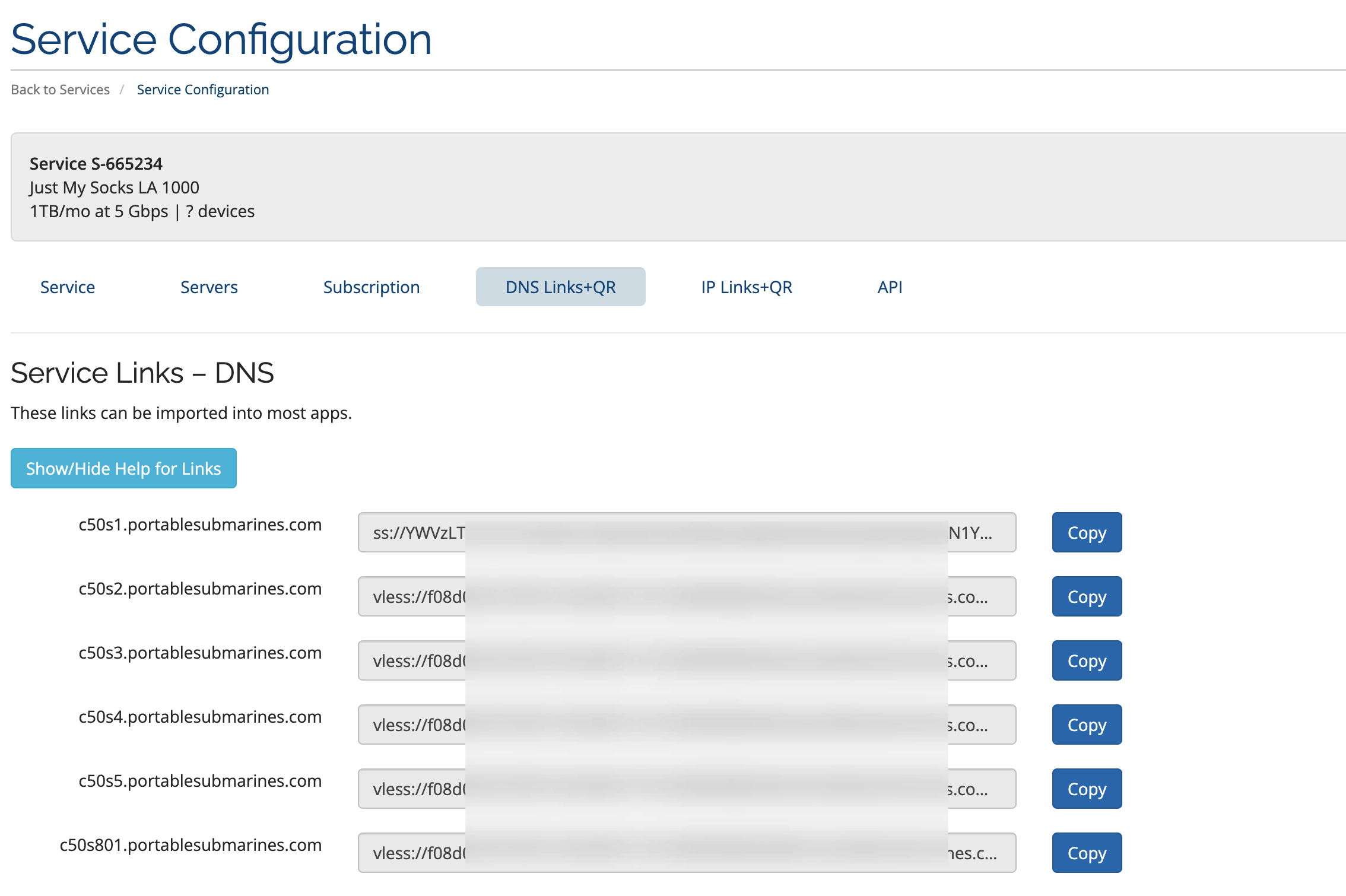
You can also open DNS Links+QR for the individual server links and QR codes.
Choose the Right Subscription Format Before Importing
A subscription URL lets compatible clients retrieve updated server details without entering addresses, ports, and credentials manually. However,different subscription formats for the same service are not necessarily interchangeable。
v2rayN / v2rayNG, etc.
Copy the subscription URL intended for V2Ray-compatible clients. Add a subscription group, paste the URL, and refresh it in your app. The client and its core must support the protocols currently used by the servers.
Mihomo / Clash.Meta YAML
Use the official Mihomo / Clash.Meta YAML -specific subscription, and import its URL under Configurations / Subscriptions in a Mihomo-based client such as Clash Verge Rev.
How to Set Up Windows, macOS, Android, and iOS
Choose a maintained client that supports VLESS / Realityand can recognize the correct subscription format. The apps below are common examples, not an exclusive official JMS list for every device.
v2rayN:: Subscription Groups → Add URL → Update → Select Server → Enable System Proxy (if needed).
Clash Verge Rev:: Import the official Mihomo YAML subscription → activate the configuration → select a server/group → enable System Proxy.
Download the appropriate build for Apple Silicon or Intel. Import and activate the official YAML subscription, then select System Proxy or another suitable mode. Older ClashX cores may not support newer protocols on your plan.
Use an up-to-date client with Reality support. Add and refresh the subscription URL, select a server, and approve the VPN connection request. Menu names vary between apps.
Confirm that the current app version supports the required protocols. Import a supported subscription or QR code, choose a server, and allow the VPN configuration when prompted by iOS. Check the App Store for current availability and pricing.
Download from official project release pages or legitimate app stores, not unknown installers.
Use the relevant subscription for V2Ray-based apps and the official YAML feed for Mihomo-based apps.
Enable the proxy mode you need, check your public IP to verify the exit route, and test the sites you intend to access.
Client download references:v2rayN Official Project · Clash Verge Rev Releases · v2rayNG Official Project. For iOS apps, verify the genuine developer listing in the App Store.
Why the 2026 Protocol Updates Matter
If everything used to work and suddenly stops, the issue might be an outdated client core or mismatched subscription format rather than a problem with your plan.
The provider introduced Mihomo / Clash.Meta YAML subscriptions, while some servers began migrating to VLESS / Reality.
The provider announced that s2 also switched to VLESS / Reality. Existing subscription URLs remained unchanged, but users needed to refresh them.
The provider updated server software for security; some older client versions are no longer supported.
Update the app and its Xray / Mihomo core → refresh the subscription → select a server and test again.
Connection Problems? Check These 5 Things
The subscription imports, but none of the servers work
Why does a newer Clash app show a YAML error?
The app says “Connected,” but websites won't load
Can I request a refund within 7 days?
Can I use it for a business team, reselling, or scraping?
Choose a plan → verify your order at checkout → Services / My Services → copy the correct subscription → update your client → import, enable the proxy, and test.
The most easily overlooked point in 2026:Use an updated VLESS / Reality-compatible client and the correct subscription format.
Sources and Last Updated
- Just My Socks official plans and pricing (checked October 19, 2026)
- Official announcement: Mihomo / Clash.Meta subscription added July 20, 2026
- Official announcements: protocol and security updates, July–September 2026
- Official terms: IP blacklisting, refunds, and acceptable use
Comments